Product customizers, like Bold Product Options or infinite Options, use what's known as "line item properties" to store extra information with an order.
In this example, we will show you to extract the line item properties from the below order, as it would appear in your Shopify order screen.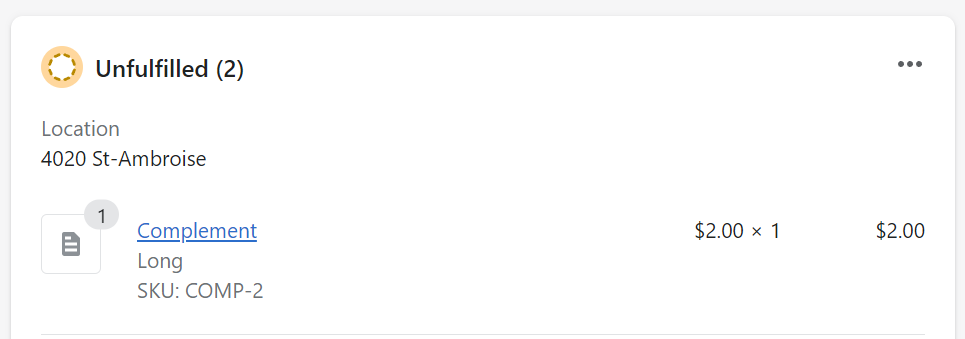
From the Add Fields menu:
The simplest way is to add the line item properties from the Add Fields menu.
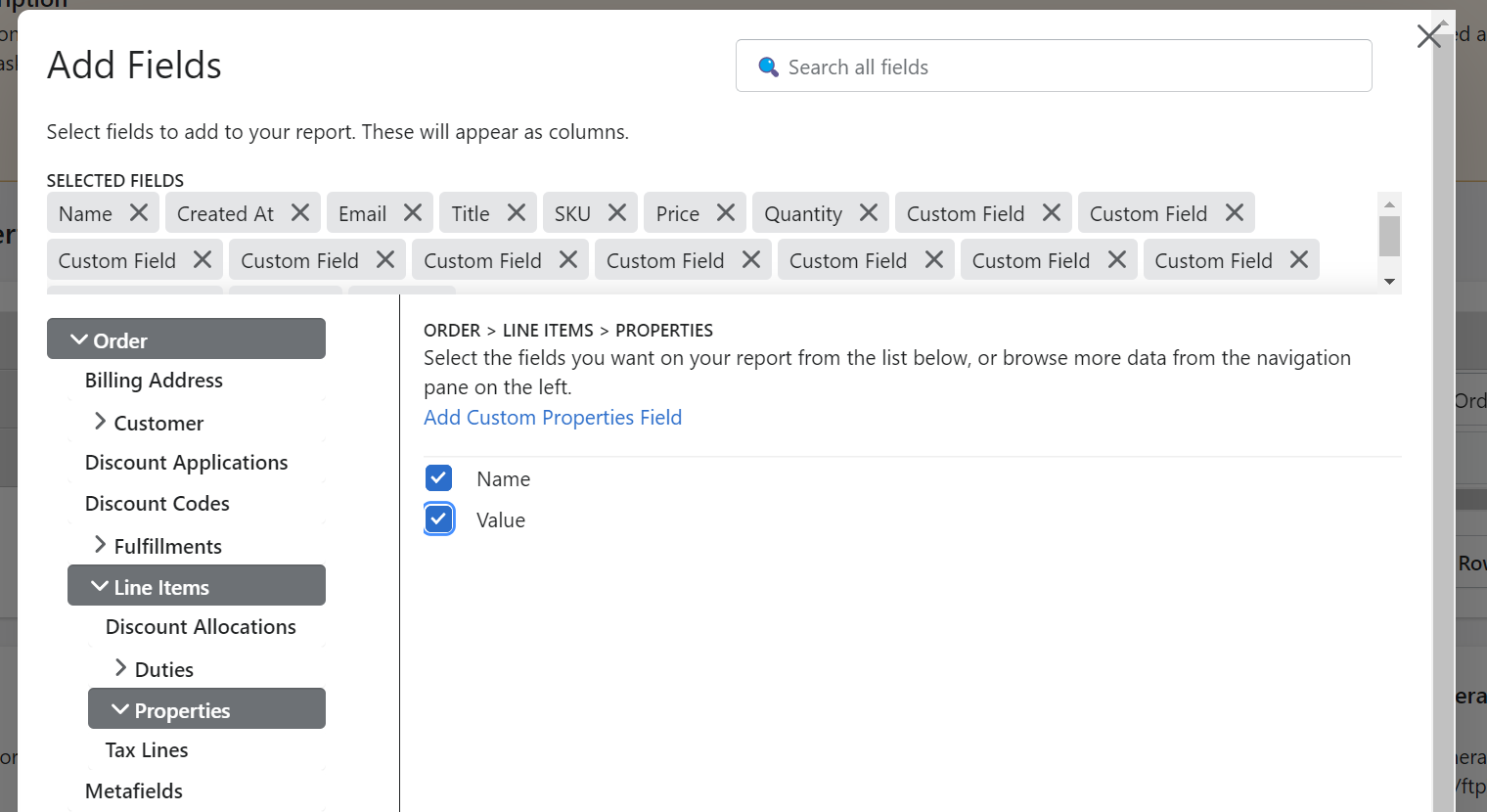
- In the data browser menu on the left, select Order -> Line Items -> Properties
- Select the Name and/or Value fields.
This will put each Line Item Property on it's own new line below the Line Item (2 lines in this case, "Long" and "SKU: COMP-2")
|
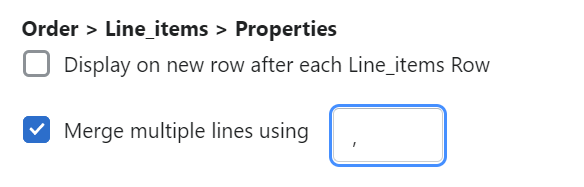
To display all Line Item properties in one cell, use the Joins feature in the Advanced Settings menu by choosing the option to "Merge Multiple Lines" *note: this features requires an Essentials or Professional subscription |
 |
Using Custom (Liquid) Fields
To put each property into it's own column, or extract only specific properties, you can use Custom Fields to extract only the data you want using Liquid. Click here to read more about this powerful feature
*note: this features requires a Professional subscription
For example, to extract just the value (COMP-12 in this example) of the property named SKU, you could use the following expression
{{ line_item.properties | pluck: 'name', 'SKU', 'value' }}
If you only wanted the value of second Line Item Property, you could use the following expression
{{ line_item.properties[1].value }}
If you are having any trouble getting your fields showing up in your report, please don't hesitate to drop us a line at exports@moddapps.com, and we'd be happy to help you set up your report.