What is Shopify Flow?
Shopify Flow is a powerful automation tool that helps you build custom workflows for your store without writing code. Think of it as a way to automatically respond to events in your store with specific actions like sending emails, tagging customers, or updating inventory, all triggered by events that happen in your Gift Reggie app.
With Flow, you can create "if this, then that" workflows. For example: "If a registry is created, then tag the customer as 'Registry Owner'" or "If a registry event date is 14 days away, then send a reminder email."
How Flow Works with Gift Reggie
Gift Reggie app sends triggers to Shopify Flow whenever specific events occur. These triggers contain detailed information about the registry, customer, and orders, which you can use to build powerful automation workflows.
The Flow Process
- An event occurs in Gift Reggie (e.g., a customer creates a registry)
- A trigger fires and sends data to Shopify Flow
- Flow evaluates conditions you've set up (optional)
- Actions are executed based on your workflow (e.g., send email, add tags, create tasks)
Looking for Gift Reggie integration with Klaviyo using Shopify Flow? Click here
Available Triggers
The following triggers are currently available in the Gift Reggie app.
⚠️ Note: We plan to add more triggers in the future. This documentation will be updated as new triggers become available.
Registry Triggers
1. Registry Created
Triggered when a customer creates a new gift registry.
Common use cases:
Send a welcome email
Tag the customer as a “Registry Owner”
Notify staff
2. Registry Closed
Triggered when a registry is closed by the customer or admin.
Common use cases:
Send a thank-you message
Remove registry-related tags
Archive registry data
3. Registry Re-Opened
Triggered when a previously closed registry is re-opened.
Common use cases:
Notify customer support
Resume marketing campaigns
4. Registry Shared
Triggered when a customer shares their registry.
Common use cases:
Track engagement
Send a follow-up email
Notify internal teams
5. Registry Order Placed
Triggered when an order is placed that contains registry items.
Data provided:
Registry information
Customer details
Order details
Common use cases:
Send confirmation emails
Tag orders as “Registry Orders”
Trigger fulfillment workflows
Time-Based Registry Triggers
These triggers depend on a relative number of days, which can be configured in the app.
Relative Days Configuration
You can configure the number of days here:
Preferences → Settings → Email & Notifications → Relative Days for Notifications and Flow
Default value: 14 days
6. Registry Event Upcoming (X Days Before Event)
Triggered X days before the registry event date.
Common use cases:
Send event countdown reminders
Encourage last-minute gifting
Highlight popular or unpurchased items
7. Trigger After X Days of Registry Created
Triggered X days after a registry is created.
Common use cases:
Send reminders to complete or share the registry
Re-engage inactive registry owners
8. Trigger After X Days of Event Date
Triggered X days after the registry event date.
Common use cases:
Send post-event thank-you emails
Request feedback
Promote post-event offers
9. Trigger When Registry Event Is Ongoing
Triggered when the registry event date is currently active.
Common use cases:
Create urgency with last-day reminders
Promote fast-shipping or digital gift options
Wishlist Triggers
10. Wishlist Created
Triggered when a customer creates a wishlist.
Common use cases:
Tag customers interested in products
Send wishlist confirmation emails
11. Wishlist Shared
Triggered when a wishlist is shared.
Common use cases:
Track engagement
Trigger marketing workflows
How to Create a Flow Workflow
Step 1: Access Shopify Flow
- Log in to your Shopify admin
- Navigate to Settings → Apps and sales channels
- Open Shopify Flow
- Click Create workflow
Step 2: Choose a Trigger
- Click Select a trigger
- Search for "Gift Reggie" in the app list
- Choose one of the 11 available triggers
- Configure any required settings
Step 3: Add Conditions (Optional)
Conditions allow you to refine when actions should run. For example:
- Only run if the registry event type is "Wedding"
- Only run if the customer has spent over $500
- Only run if the registry contains more than 10 items
To add conditions:
- Click the + button below your trigger
- Select Condition
- Choose the data field you want to evaluate
- Set your criteria
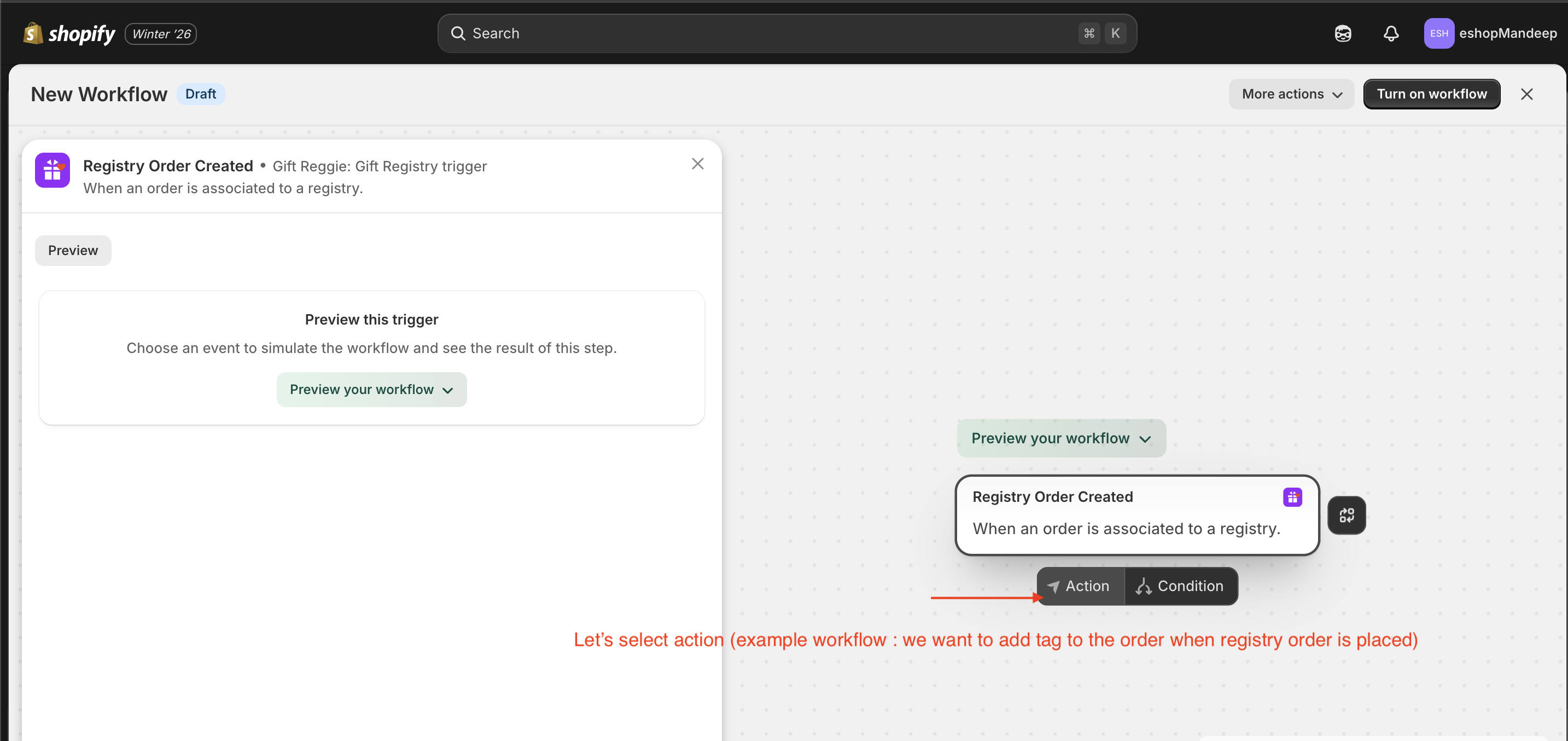
Step 4: Add Actions
Actions are what Flow will do when the trigger fires (and conditions are met). Common actions include:
- Send email to customers or staff
- Tag customers for segmentation
- Create tasks for your team
- Update customer metafields
- Send data to external apps via webhooks
To add actions:
- Click the + button
- Select Action
- Choose from available actions
- Configure the action details
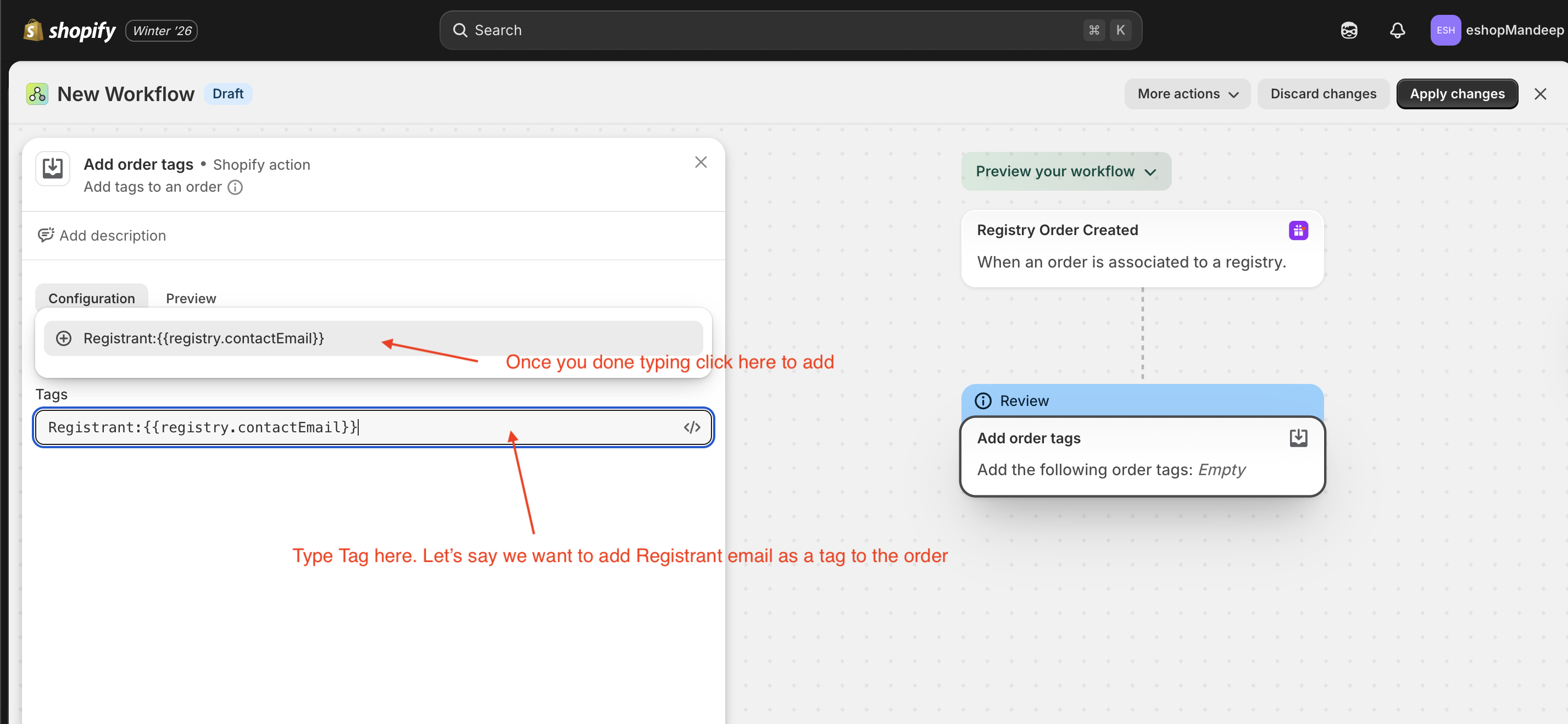
Step 5: Test and Activate
- Review your workflow
- Click Turn on workflow
- Monitor the workflow's activity in the Flow dashboard
Best Practices
- Start simple: Begin with one or two basic workflows before creating complex automation
- Test thoroughly: Use test registries to ensure your workflows behave as expected
- Monitor regularly: Check your Flow dashboard to ensure workflows are running smoothly
- Use clear naming: Give your workflows descriptive names so you can easily manage them later
- Consider timing: Be mindful of when emails or actions are triggered to avoid overwhelming customers
Need Help?
If you have questions about setting up Shopify Flow with Gift Reggie, please contact our support team. We're here to help you create powerful automation workflows for your store.