Requirements for Usage
- Merchant's shopify store is subscribed to the Professional Plan
- Automatic report generation must be enabled
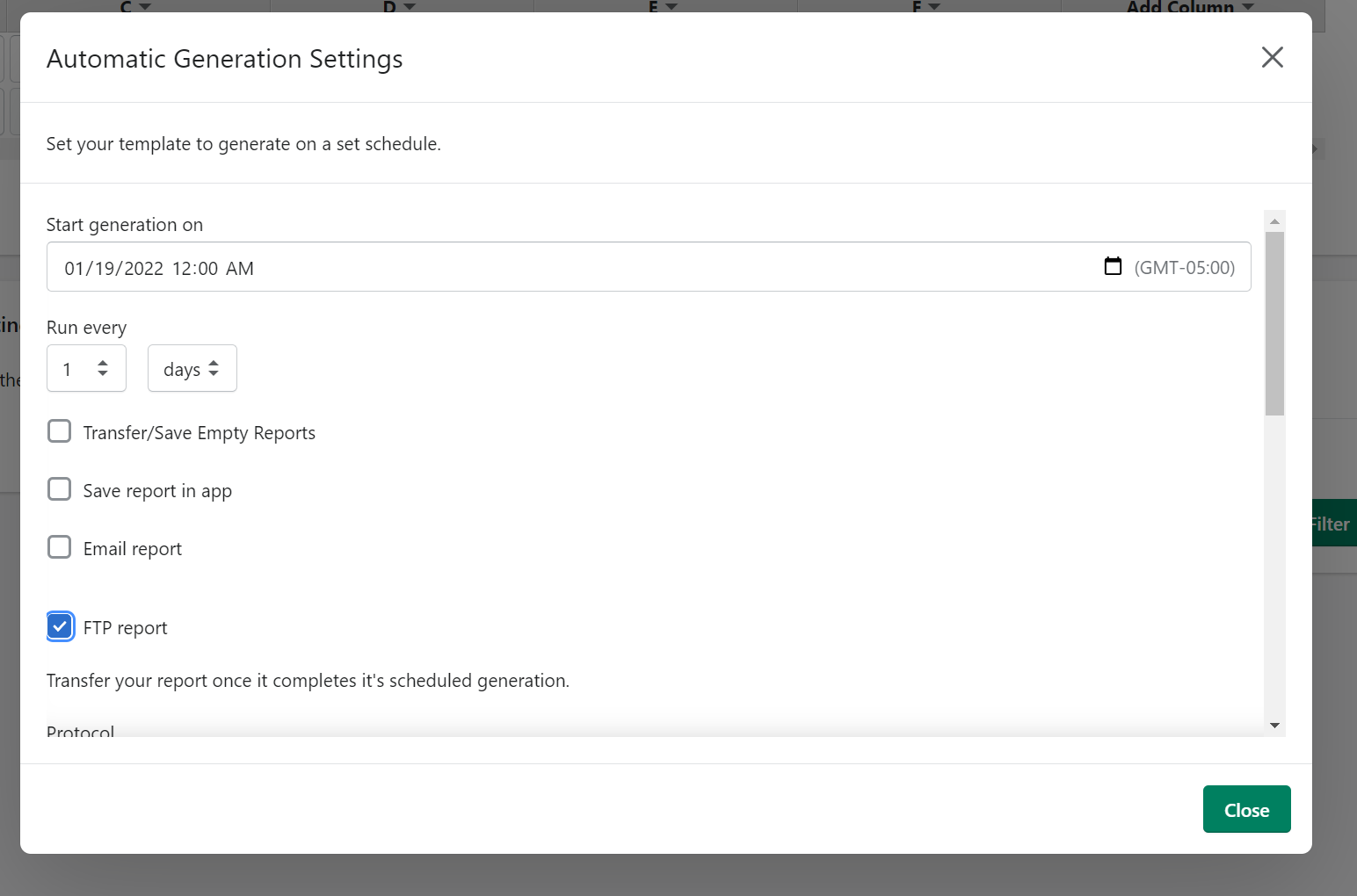
Liquid Variables
You can use the following variables to customize your file's name, and the email. Like Shopify, Xporter uses liquid to construct its emails. We try to support all of Shopify's filters on the objects we offer. For more details about how liquid works, please look at Shopify's Documentation. If you do not know liquid, this is fine; you may simply enter regular text into your email.
If you'd like to format a date in a particular way, you can use Shopify's date filter.
|
Variable
|
Description
|
Example
|
|
Email Subject + Email Body + File Name + FTP/SFTP/SCP Path
|
||
|
report.category
|
The type of report you're generating.
|
Order, Checkout, Product, etc..
|
|
report.create_date
|
The date your report is generated.
|
November 6, 2013 06:28 PM
|
|
report.start_date
|
The date that your report starts covering.
|
November 6, 2013 06:28 PM
|
|
report.end_date
|
The date of that your report ends coverage.
|
November 6, 2013 06:28 PM
|
|
report.extension
|
The appropriate extension for your report.
|
.zip, .csv, .xlsx
|
|
report.id
|
The internal ID of the report.
|
7 |
|
shop.permenant_domain
|
The .myshopify.com address of your shop.
|
armstrong-morar5256.myshopify.com
|
|
shop.domain
|
The actual domain of your shop.
|
mybigstore.com
|
|
Email Body Only
|
||
|
report.url
|
A link to the report, accessible without logging into the app. You must have elected to store files, under the "File Storage" heading below for this to function.
|
http://exports.eshopadmin.com/view/27?token=afbc3891
|
|
shop.email
|
The contact email, listed on your shop.
|
myname@myshop.com
|
Supported File Transfer Methods
- File Transfer Protocol (FTP)
- SSH File Transfer Protocol (SFTP)
- Secure Copy Protocol (SCP)
- FTP Secure (FTPS)
FTP / FTPS Inputs
[[SCREENSHOT]]
File Formats
- indicates whether or not the output file(s) should be compressed
- Spreadsheet = not compressed
- Zip = compressed
Hostname
- this is the hostname of the destination ftp server
- ex: ftp.nameofserver.com
Port
- Use port 21 for FTP or FTPS
Directory Path (optional)
- this is the destination path the file should be saved under on the ftp server
- ex: /home/bi/customers/
Filename
- the name of the file
- liquid formatting is supported (ex: {{ report.category }}_SALES)
Extension
- the extension of the file
- ex: .csv
Username
- these are the merchant's credentials to access their ftp server (not the same as their Shopify store credentials)
Binary Mode
- Binary mode transfers files as raw data (recommended)
- Ascii mode transfers files as text
- Passive mode is the current standard that leverages a random port as the data channel (recommended)
- Active mode is a legacy standard that leverages port 20 as the data channel (where port 21 is used for the command channel)
Password
- these are the merchant's credentials to access their ftp server (not the same as their Shopify store credentials)
SFTP / SCP Inputs
Most inputs are the same as for FTP.
Port
- Use port 22 for SFTP or SCP
Connection Mode
- Using password - requires the user to input their FTP credentials as a password
- Using ssh key - requires the user to input the ssh-key to their FTP server
[[SCREENSHOT]]