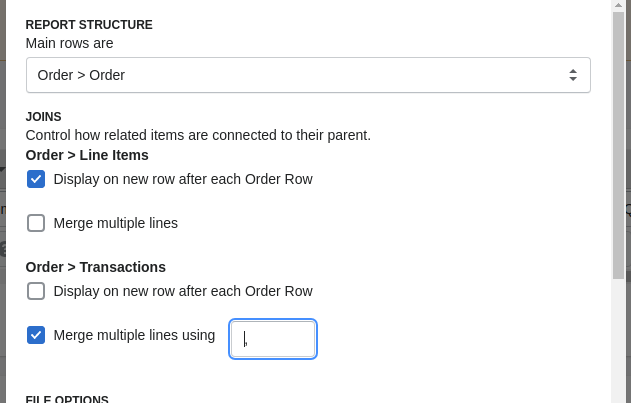
Joins are available in the advanced settings, these will effect how different object levels are joined in your report.
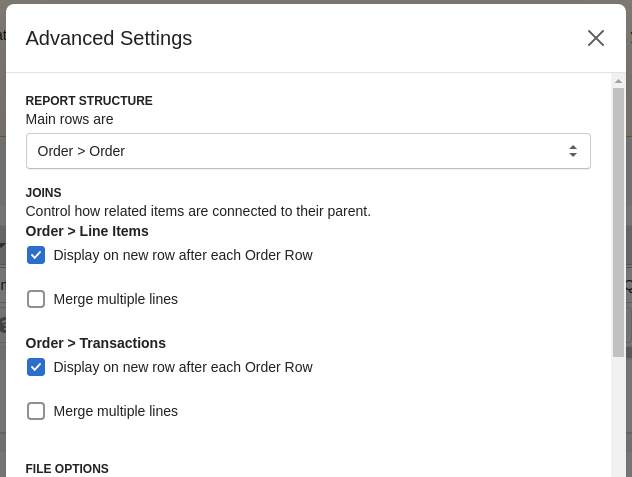
There are 3 options to effect the report structure: Main rows, Display on a new row, and Merge Lines.
Main Row
This will determine what most rows of your report will be; if you have an Order report and set your main item to Order > Line Items then rows of you report will be separate line items and any corresponding order data will be copied onto every line item row. If you have objects that are not compatible, e.g. Order > Line Items and Order > Transactions, the non-top level rows (Order > Transactions in the example) will appear on their own lines under the rows that contain their parent (Order) information.

Display on a new row
This setting will make the row appear under it's parent, e.g. you will have one row for your order information, then your Order > Line Items rows will appear under that order row. Deselecting this option will have the first Order > Line Items row on the same row as the Order row and the rest appearing below, with the Order columns being blank for those rows.

Merge Lines
This option will allow you have all values for an object column joined into a single cell. E.G. you merge multiple lines on Order > Line Items, all the line items for that order will be merged into one row, shared with the Order row. If you have a SKU column, all skus in that order will be in one cell, separated by your specified separator.