Once a report has been run (generated), it will appear in your Saved Reports, accessed from the top menu on the home screen.
Read more about how to run a report, or about our queuing system
|
From Xporter's home page, you can see recently saved reports in the "Saved Reports" panel. To download a report, click the To search, filter and delete reports, click "view all" for an expanded view Tip: Use the Refresh button if a recently generated report does not appear in the list |
 |
In full Saved Reports page, additional report details are displayed and you can search, sort, and filter your reports by template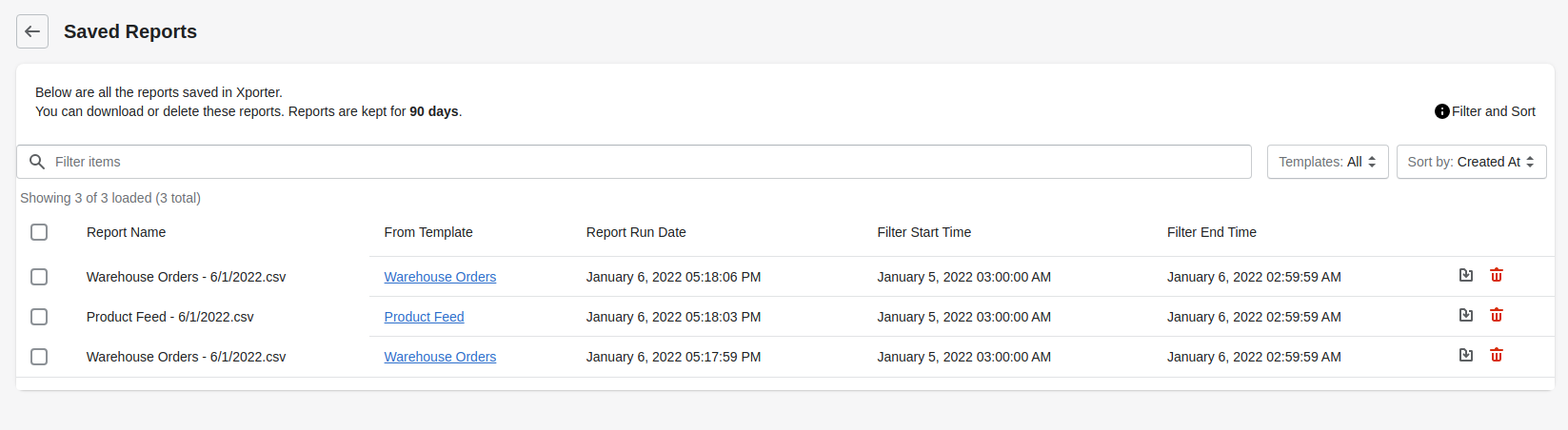
To download a report, click the download icon

To delete a single report, click the red trash can icon

To delete multiple reports, select them and press the Delete button

Note that Xporter will automatically deleted any reports saved to our storage according to your plan